New Features
Multi-Touch Drag Interactions
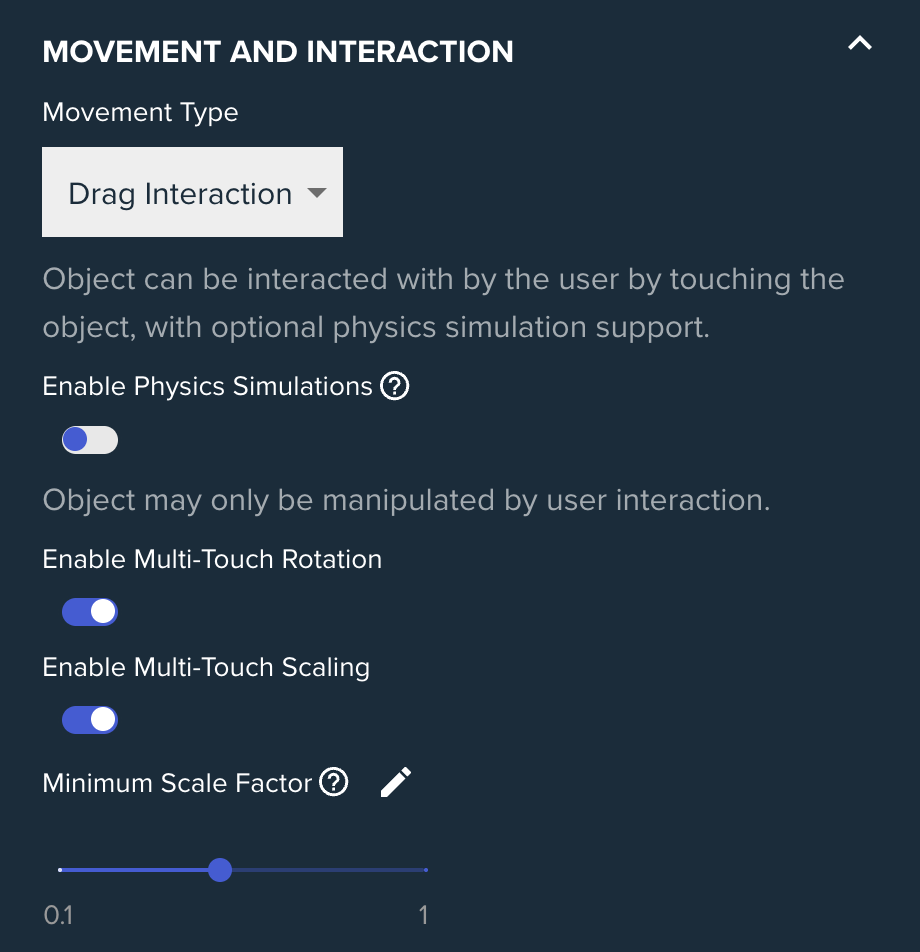
Drag Interactions now support multi-touch, so users can use two fingers to rotate and resize objects while moving them. This is turned off by default.
Object Scaling
Users can pinch to scale objects while moving them. The centre of a resizable object is kept on the room’s surfaces, so objects can’t be scaled outside the room. Physics collisions are currently disabled while scaling is active.
- Enable Scaling: turns the behaviour on.
- Minimum Relative Scale: the smallest an object can be scaled, relative to its original size.
- Maximum Relative Scale: the largest an object can be scaled, relative to its original size.
Friction After Release
The Movement setting Touch Release Behaviour has been replaced with Friction After Release, a value between 0 and 1 that controls how quickly an object slows down after it is let go.
- 0: the same as the old “Continue Moving” option.
- 1: the same as the old “Stop Moving” option.
- Rotation: a matching Friction After Release setting has been added to Rotation, slowing an object’s spin after release.
Target Point Unlinked Object Events
Target Points have new Unlinked Object Events. These are the same events available on Target Point links, but they fire whenever an object that isn’t linked to the Target Point collides with it. Turn them on with Accept Unlinked Objects in the Target Point settings.
Scene Link Quick Create
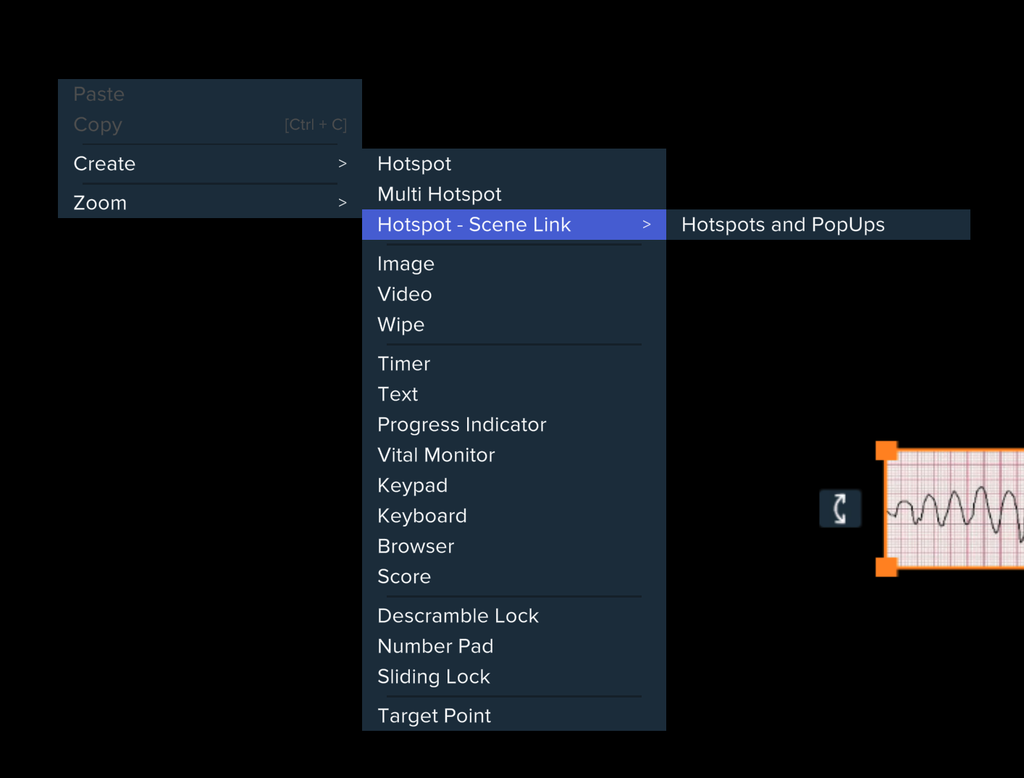
A new Scene Link option in the right-click Create menu adds a Hotspot or Action Button that is already set up to open another scene. Hover over the option to see a list of your other scenes, then pick the one to link to.
Flat View Improvements
- New button bars: walls have a Flat View button bar with Zoom, Switch Left and Switch Right, and the floor has one along its bottom edge to zoom or switch to the walls.
- Refined buttons: Flat View buttons are smaller with refined visuals.
- Fit to screen: when the Flat View is taller than the screen (for example with a tall floor), the view zooms out to show the whole space.
- Less clutter: Pan/Zoom prompt icons hide when there isn’t room, and Zoom and Pan indicators turn off if they would overlap the Flat View.
- Surface borders: border lines now stay a constant size on screen as you zoom.
- Under the hood: a variety of internal improvements.
Match Group Theme Improvements
- Tooltips: added to theme settings that weren’t clear, such as Line Connection Type, the Stack options and the Glow settings.
- Tidier layout: Play Line Animation now sits after Group Match Line Connection Type, and Duration and Ease Type are hidden when it is off.
Bug Fixes
- Drag rotation: fixed large objects rotating erratically.
- Area Constraints: the Area Constraint System now correctly contains objects that are being pushed.
- Duplicate events: fixed some UnityReactBridge events being triggered twice.
- Large experiences: the config can now be split up on very large experiences, avoiding a crash. Unity now also only sends React the current scene’s data when updating values.
- Global Match Group Theme: turning off Play Line Animation no longer hides the toggle and the other line settings.
- Match Group Theme Preview: the Stack group behaviour now previews the same way it plays. Stacked elements no longer all move to the same point (which made Stack look like Pile), and the last selected element is drawn on top.
- Media Effects: Drop Shadow and Outer Glow now hide along with their Image or Video when an Is Enabled Expression turns it off, and stay hidden when the effect is rebuilt (for example when the element is scaled).
- Floor Scenes in Wide Front rooms: fixed Floor Scenes (Splat, Scatter, Wipe and others) not showing in Wide Front rooms. The remaining wall scenes now use the same Camera Near Clip Plane (0.1) as the Base Scene.
- Background Touch Particles: no longer appear on the floor when the floor is touched.